1 of 14
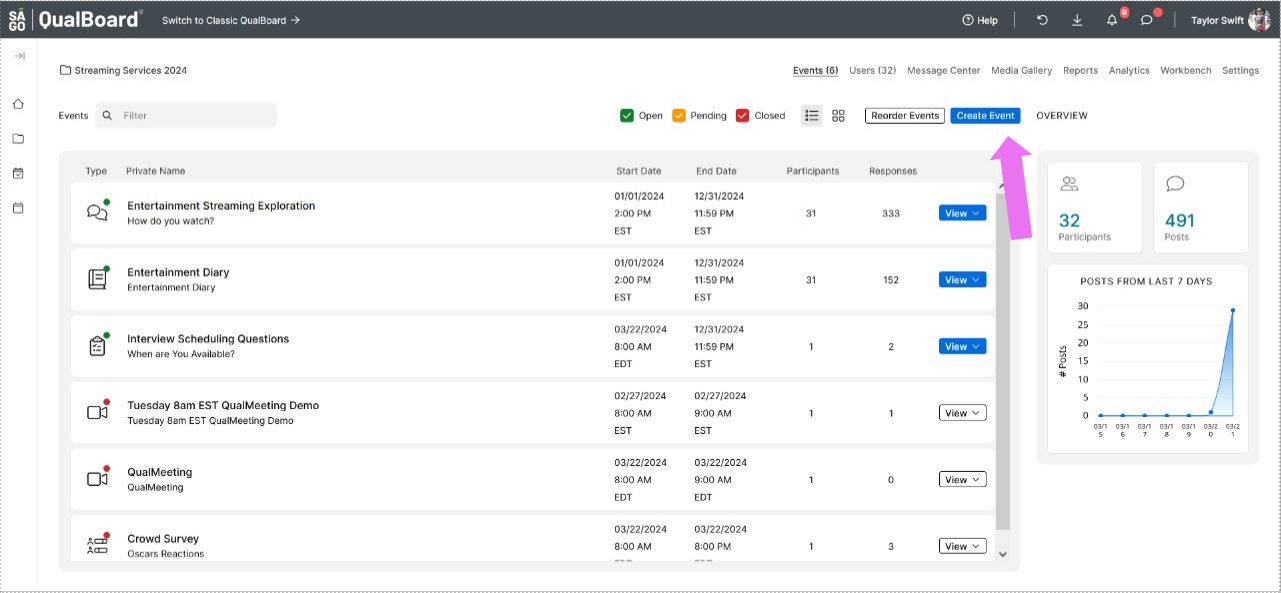
From the Project Dashboard, click the Create Event button
You're well on your way! Click Next for the next step.
2 of 14
Select the box labeled AI Moderation.

3 of 14
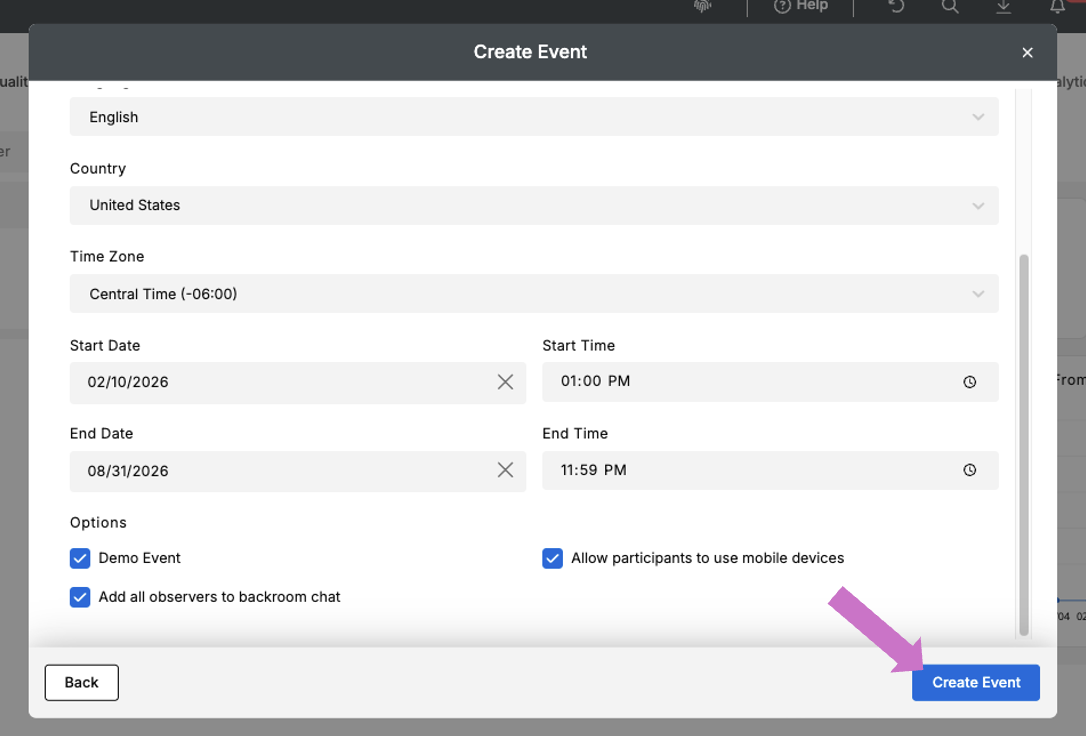
Next you will give your event a Public and Private Name. The Public Name can be viewed by any user. The Private name is not visible to respondents. Select the timezone that the project's open and close dates will be based off of. Finally click Create Event.
4 of 14
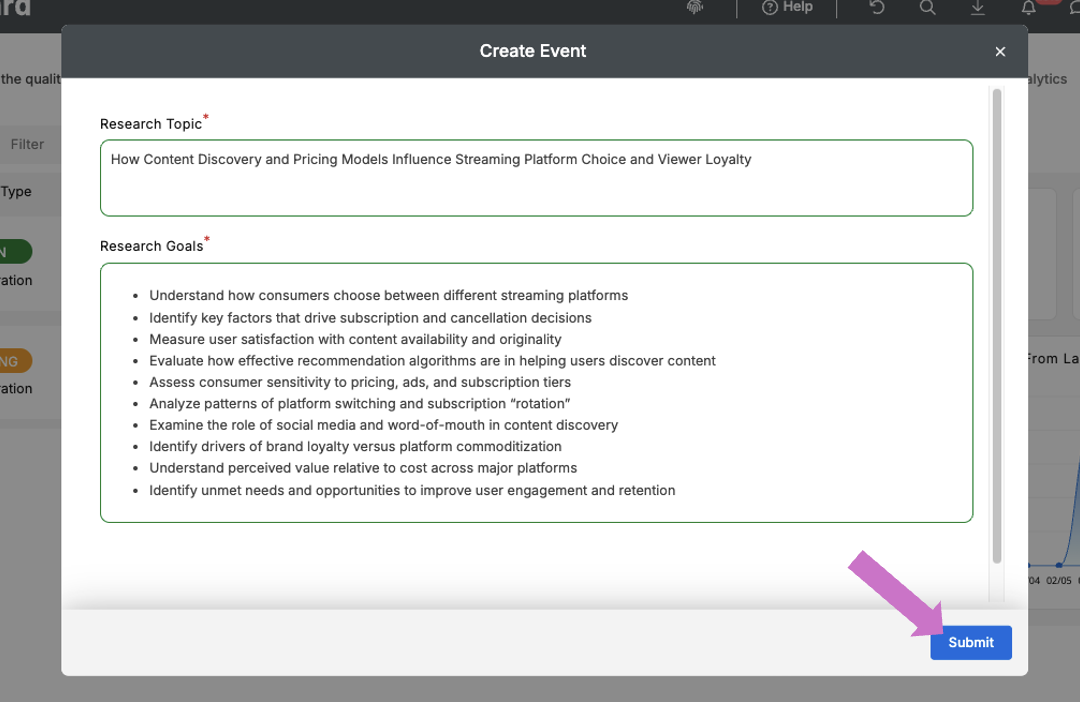
Next you will define the Research Topic and Research Goals. This will help the AI know how to probe to get the best responses possible for the information you're trying to gather.
5 of 14
Click View and then Responses, or the Event's Name, to enter the event and begin setting everything up! Alternatively, you can jump into the Edit, Participants, or Settings tab of the event from this menu.
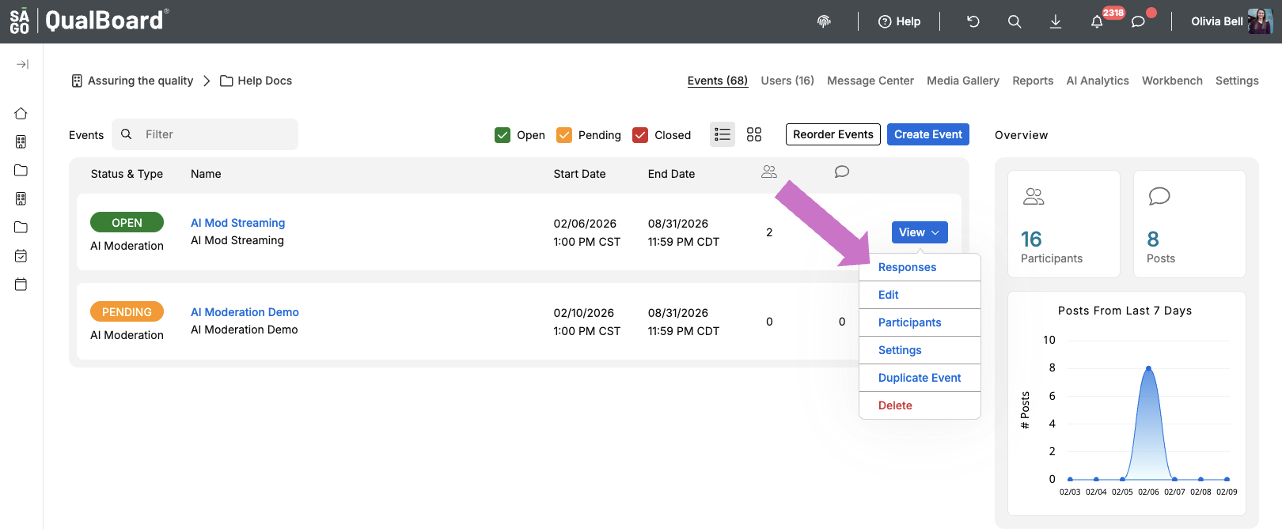
6 of 14
You'll need to be in the Edit tab to begin adding questions for the respondents to complete.
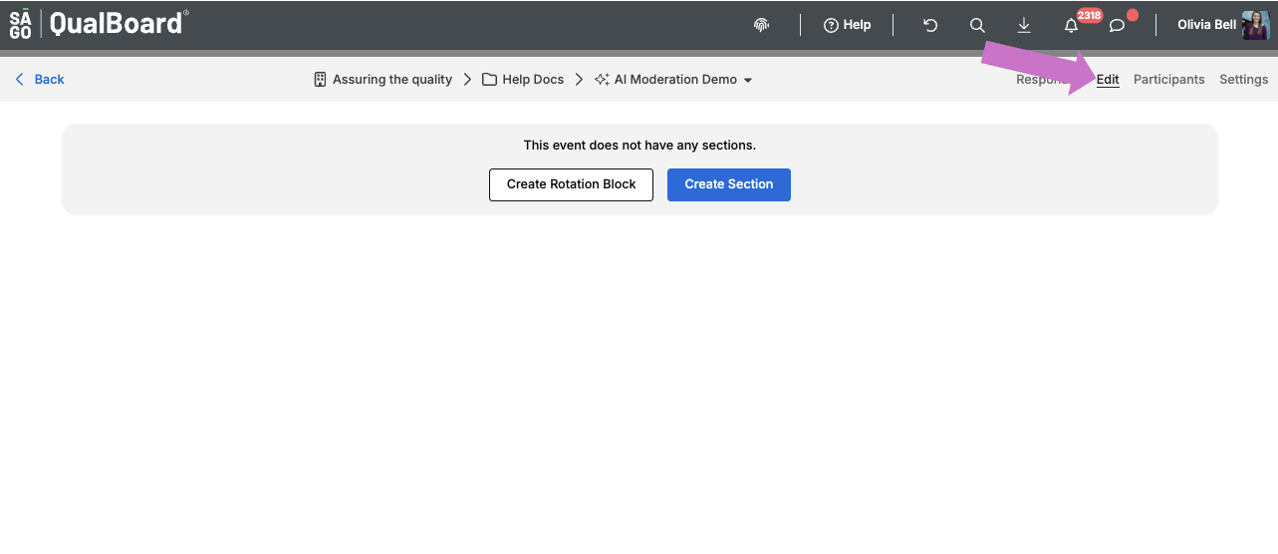
7 of 14
Click New Section to begin setting up your sections. Sections are containers of questions that open at specific times and have a defined order.
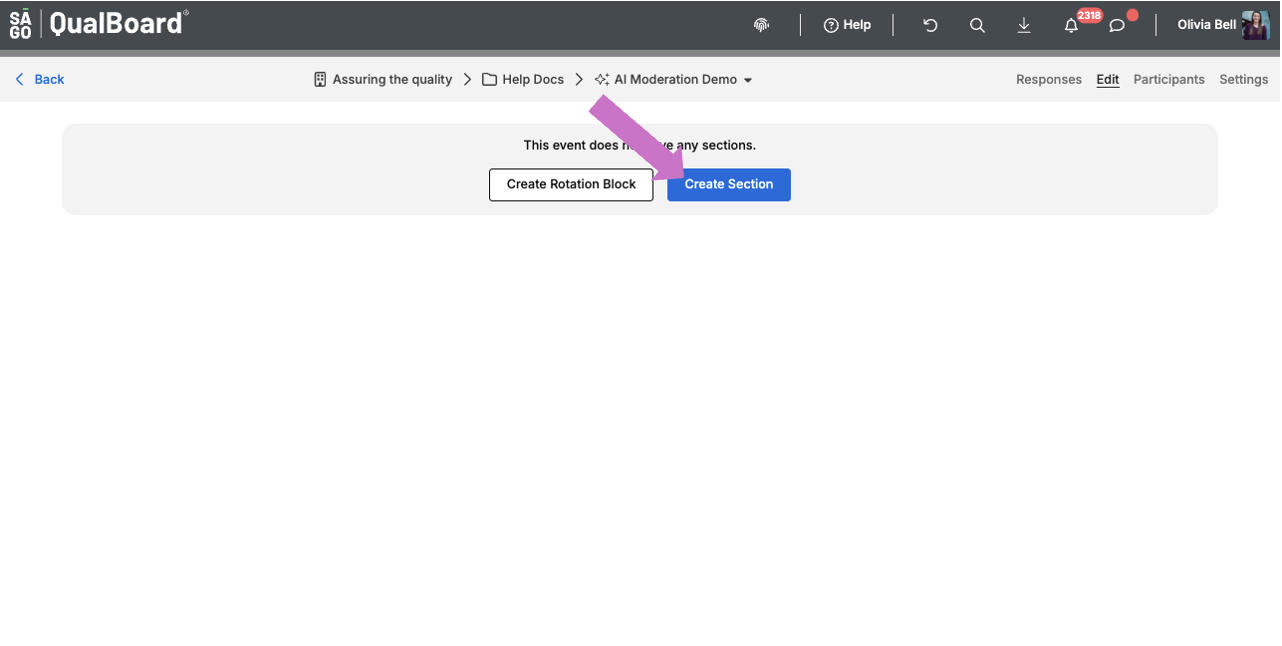
8 of 14
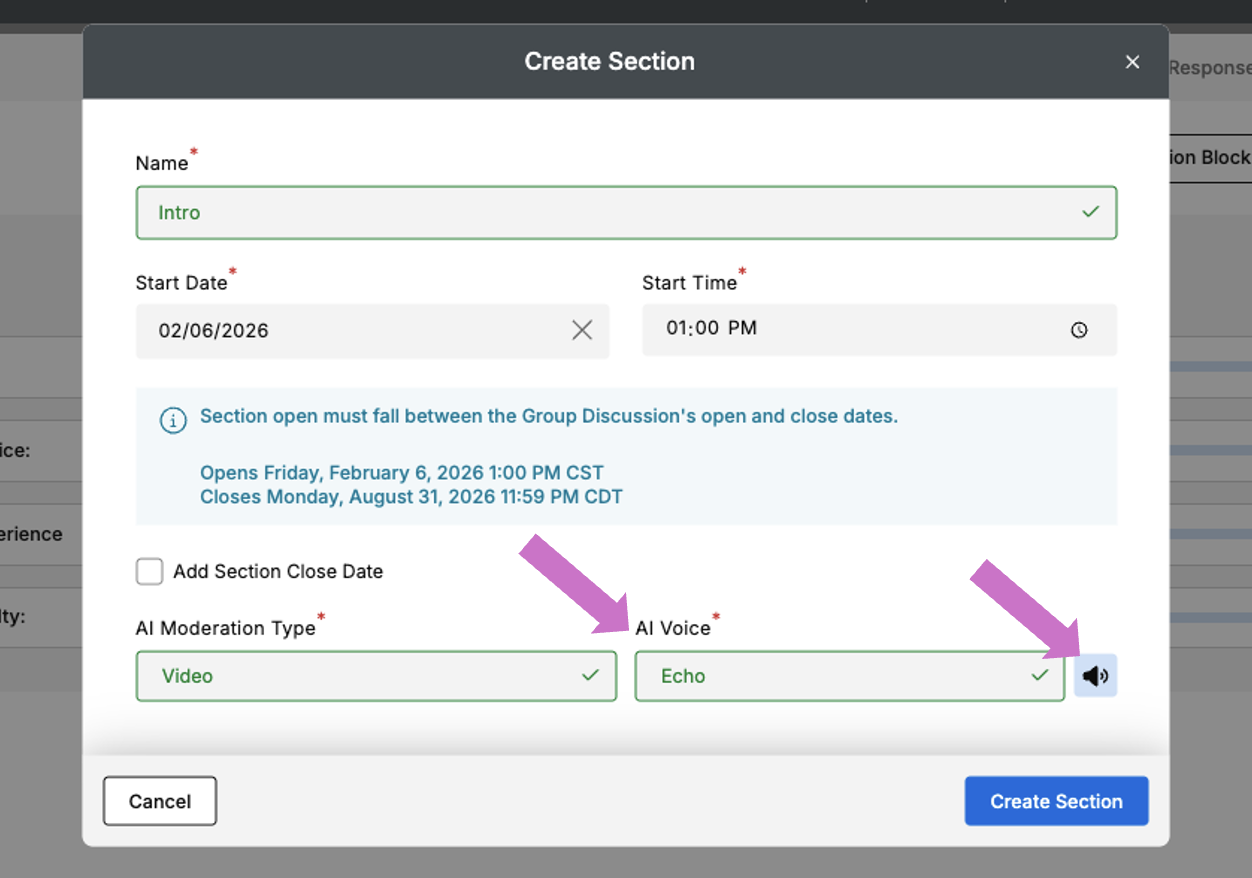
You can give your section a name that will be seen by participants. You also will set the open time when the questions in this section will become available to respondents and the type of AI Moderated section. When you are finished, click Create Section.
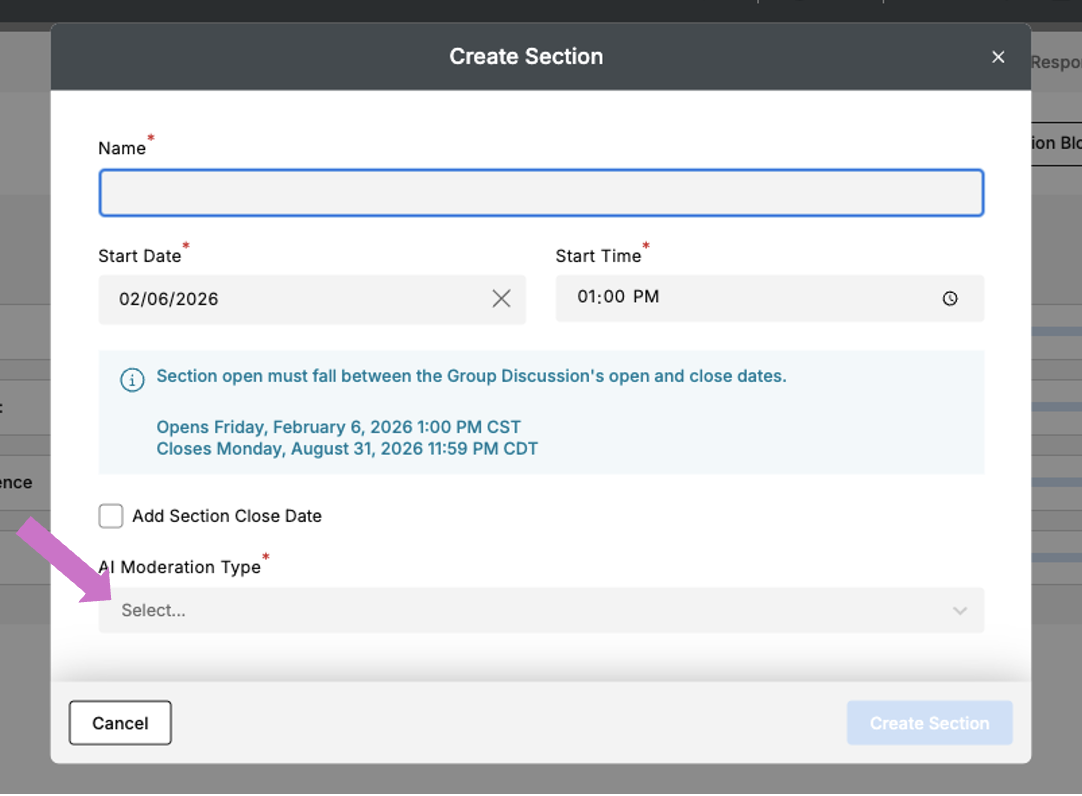
9 of 14
For Audio and Video sections, choose an AI voice. This voice will read the questions aloud to respondents. To preview a voice, select it from the list and click the headphone icon.
10 of 14
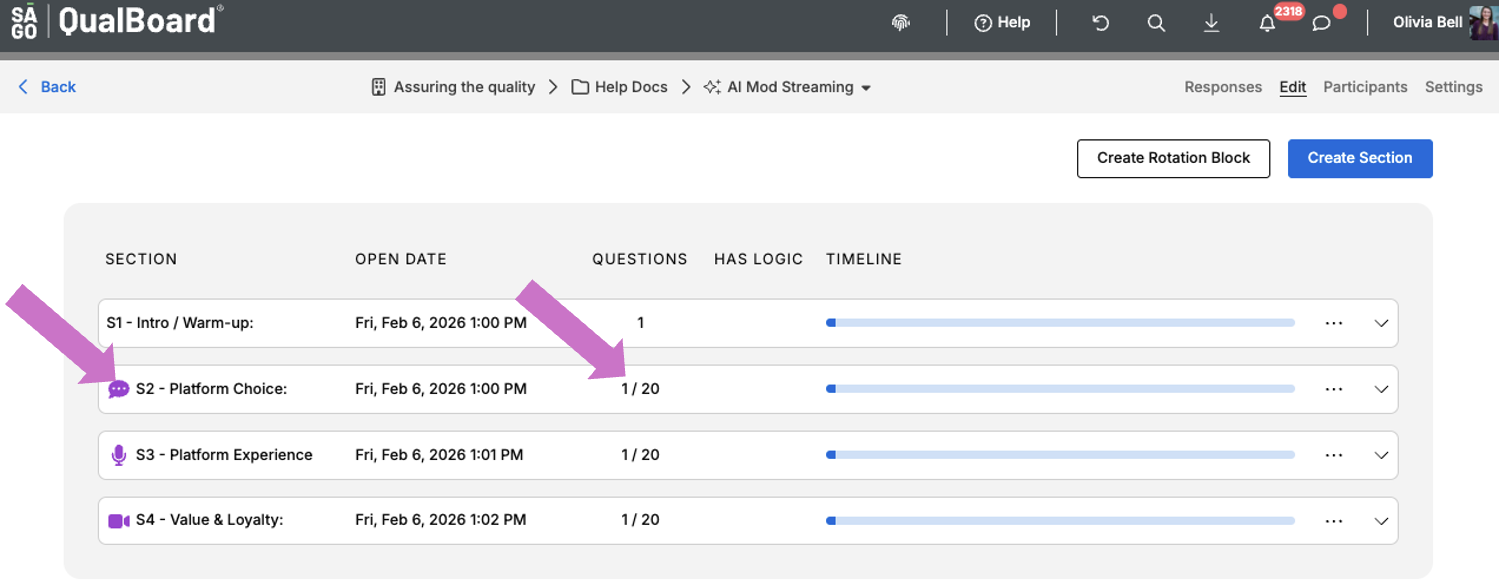
To discern between section types, you can reference the icon next to the section name. AI Moderated sections have a limit of 20 questions.
11 of 14
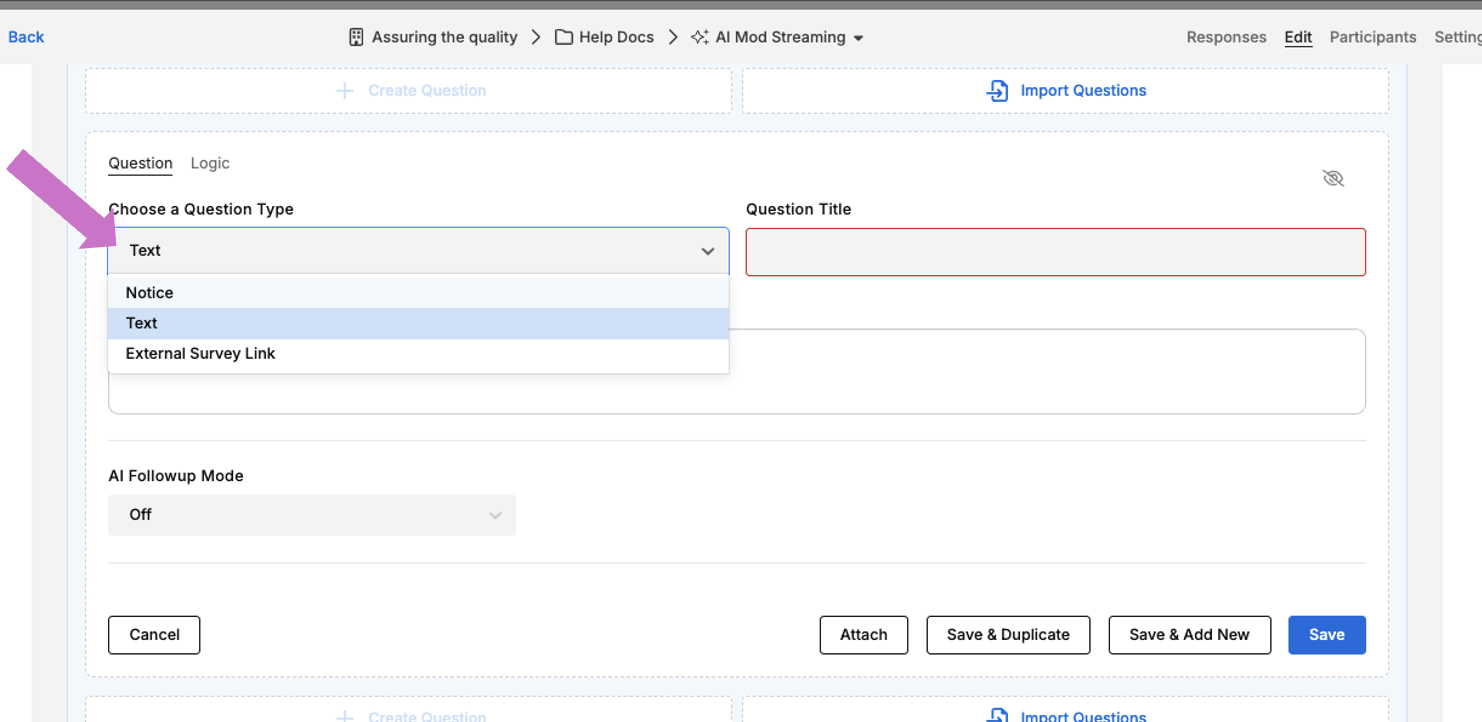
Click the drop-down and select the question type.
12 of 14
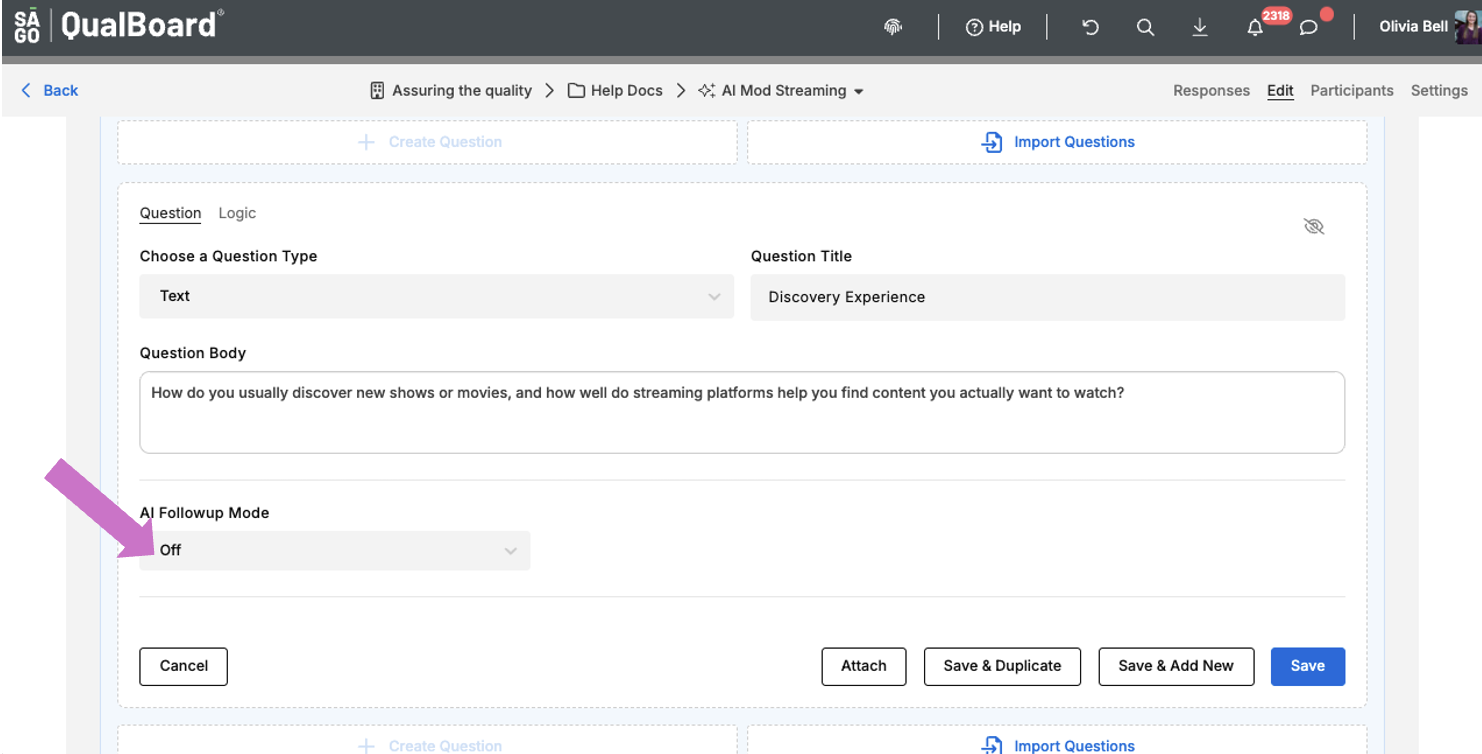
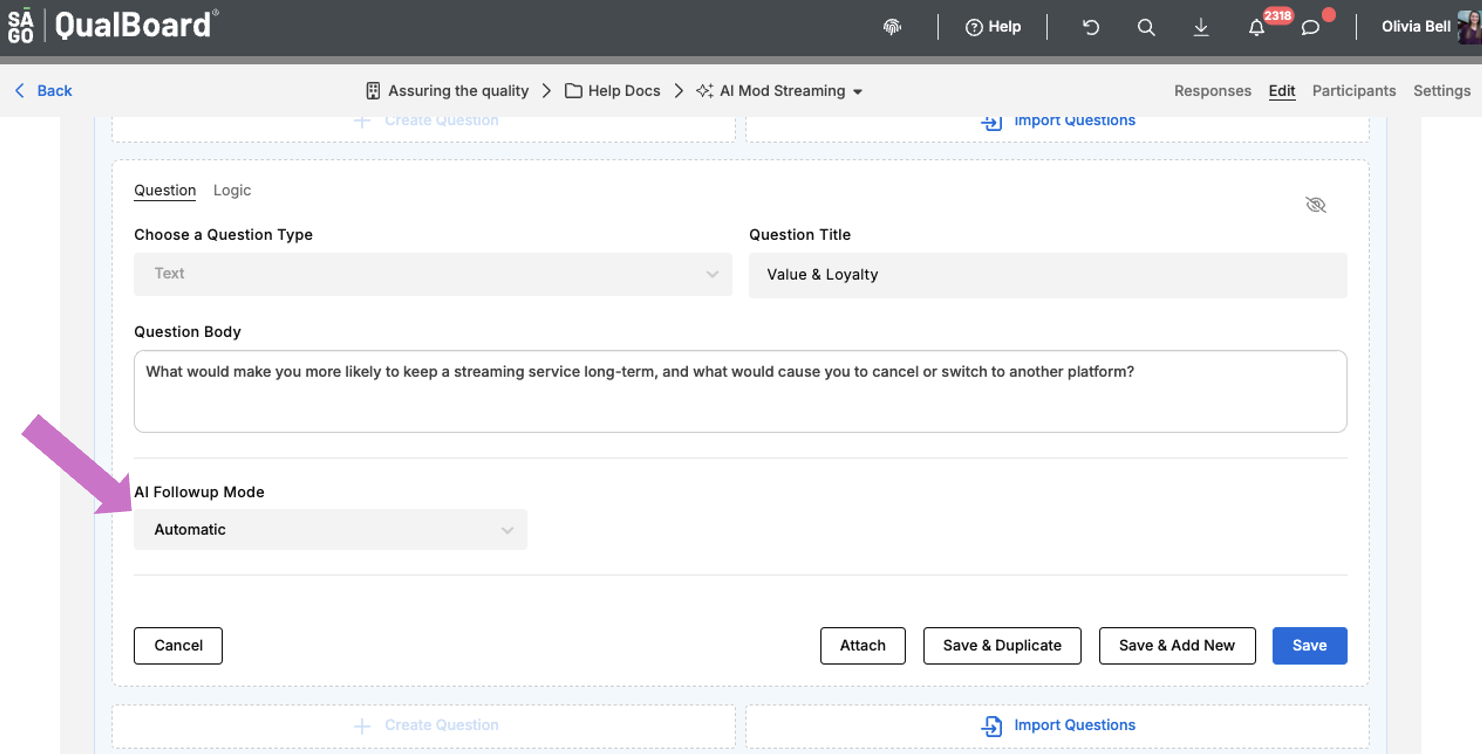
Choose which Followup Mode you want for each question. If it is set to "Off", the AI Interviewer will move onto the next question without probing.
13 of 14
If the AI Followup Mode is set to Automatic, the AI Interviewer will probe the user up to 3 times. Their followup questions will use the Research Topic and Goals to determine what questions to ask.
14 of 14
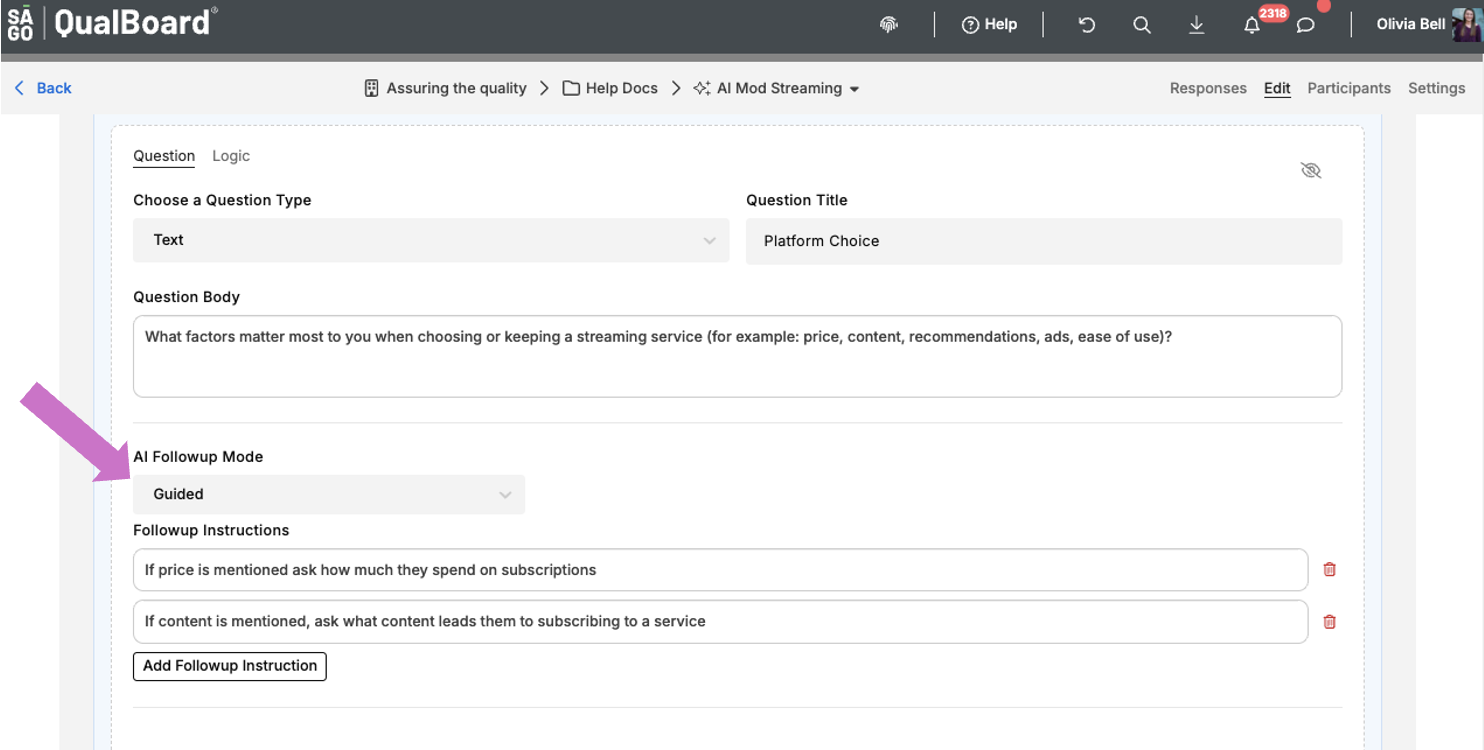
If the AI Followup Mode is set to Guided, you can list Followup Instructions for the AI Interviewer to follow while conducting the interview.